
Mobile Reading Setup
- (Android) Hoshi Reader
- (iOS) Hoshi Reader
- (Android) PopLingo — OCR lookups in any app (manga, visual novels, games)
- Manatan - recommended for manga
- (Android) Chimahon
The best app currently for reading on a mobile device is Hoshi Reader, which has both iOS and Android versions. The Android version has first-class support for e-ink devices.
Android
Download Hoshi Reader here - it is currently only available as an .apk, so you would need to sideload it.
- Download the .apk file, then open your device's file manager and tap on the downloaded .apk.
- Allow the permission for the file manager app to install unknown apps if prompted.
- Tap "Install" once permission is granted.
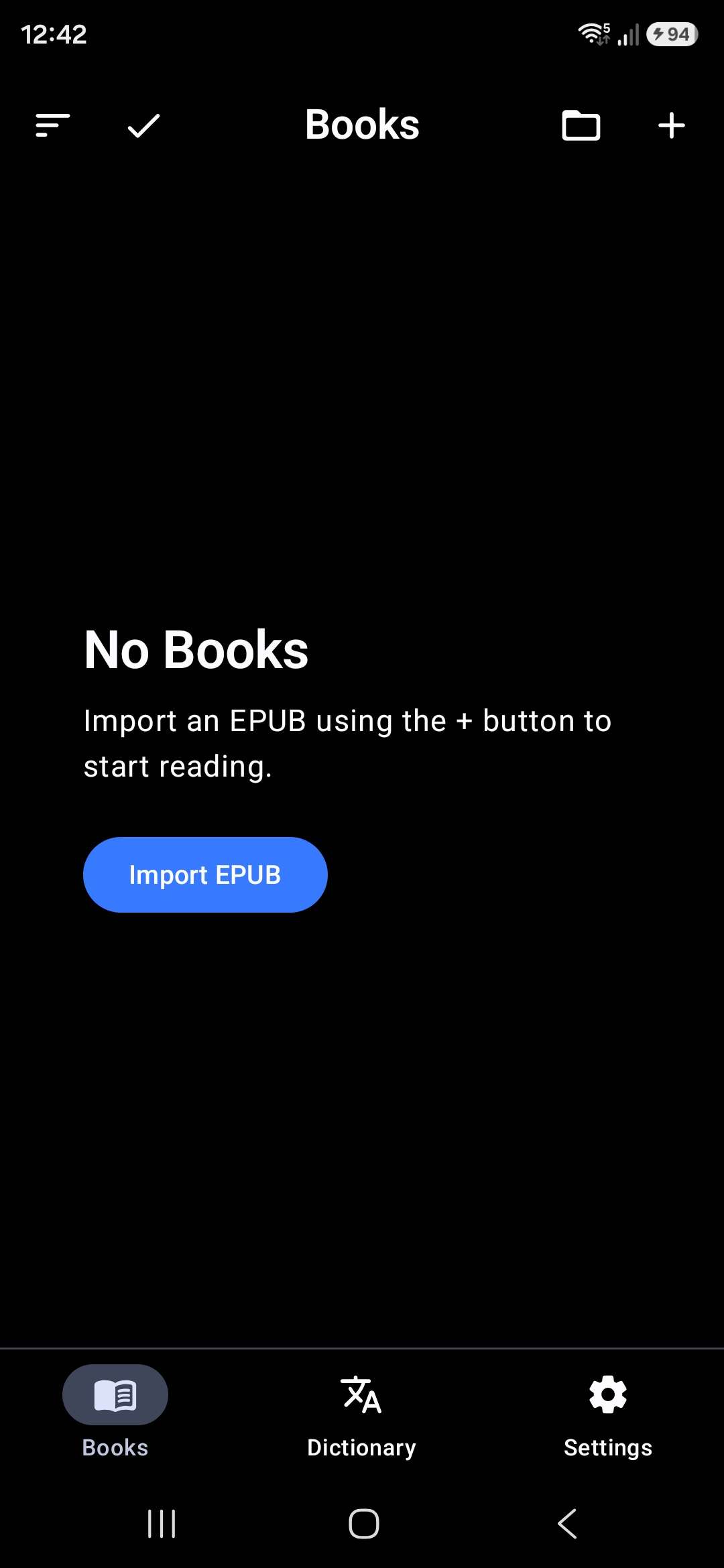
Open the app and you will see the "Import EPUB" button, this is how you'll import a book into Hoshi Reader.
This will open the file picker, select an EPUB file to import your book.
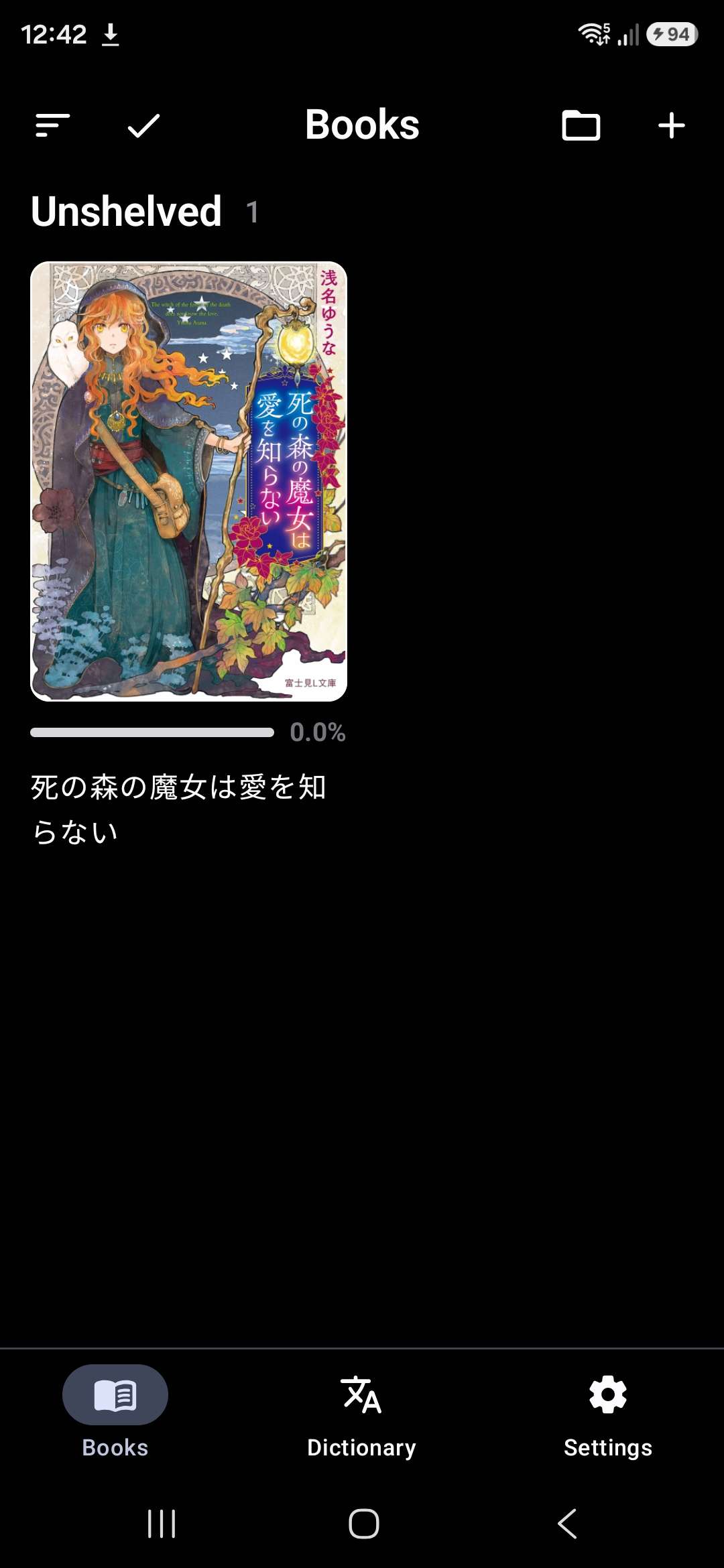
By default your books will appear as "Unshelved". The folder icon in the top-right is how you can manage your Shelves. This is useful for categorizing your books (plan to read, high priority, low priority, dropped, on hold, completed etc.)
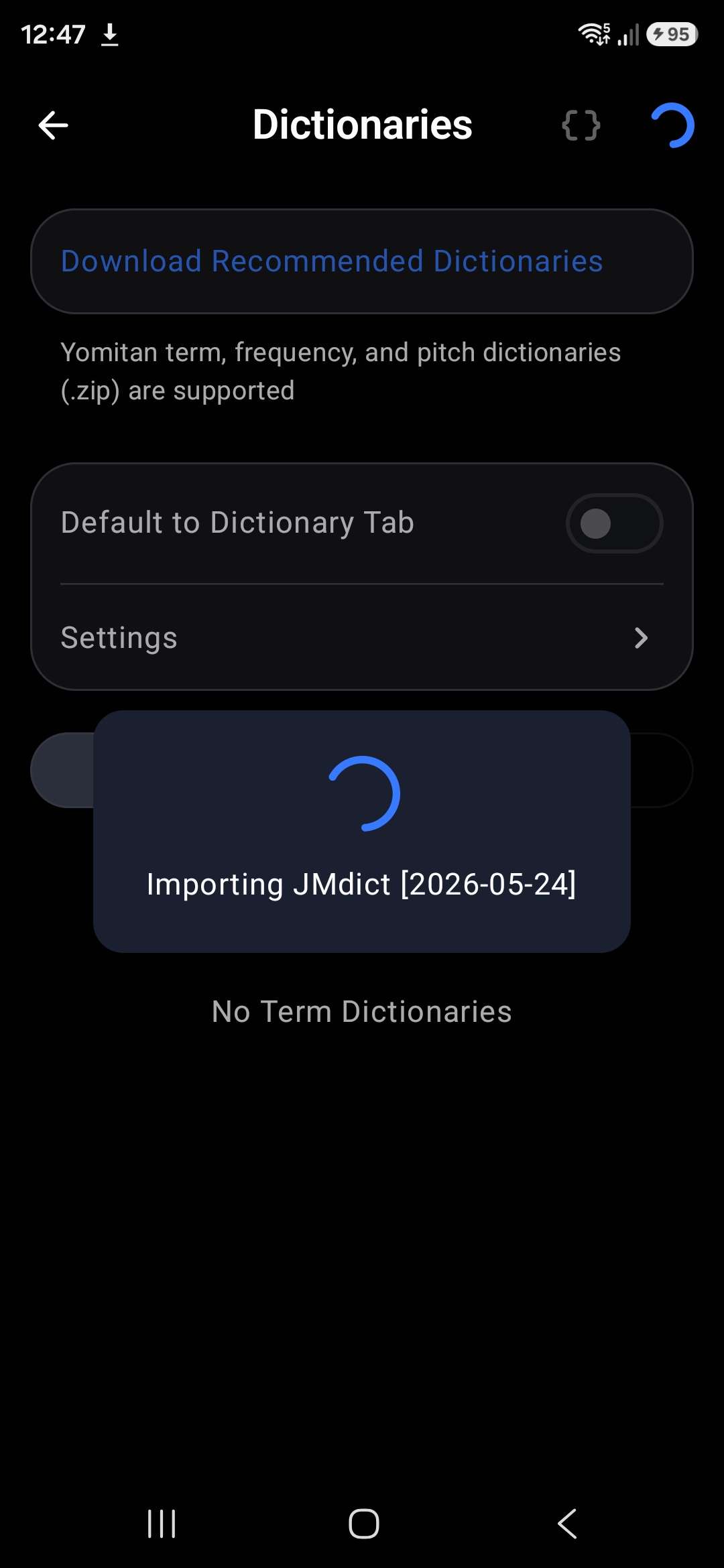
To set up the pop-up dictionary, go to Settings then "Dictionaries". To import from .zip, tap the + in the top-right corner. Hoshi Reader can automatically fetch the latest version of JMdict with the "Download Recommended Dictionaries" option.
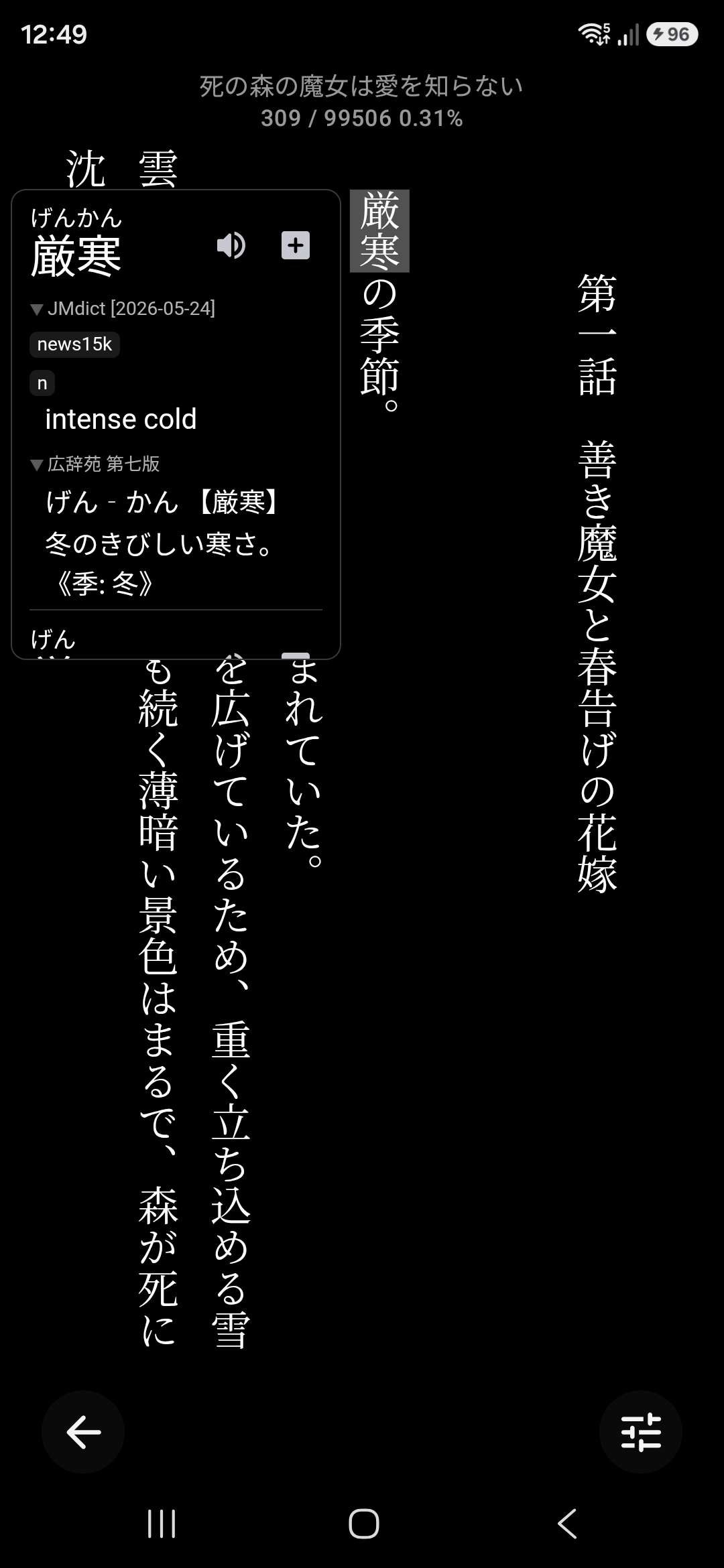
Start reading by tapping on your imported book in Books.
Tap on a word to trigger the pop-up dictionary.
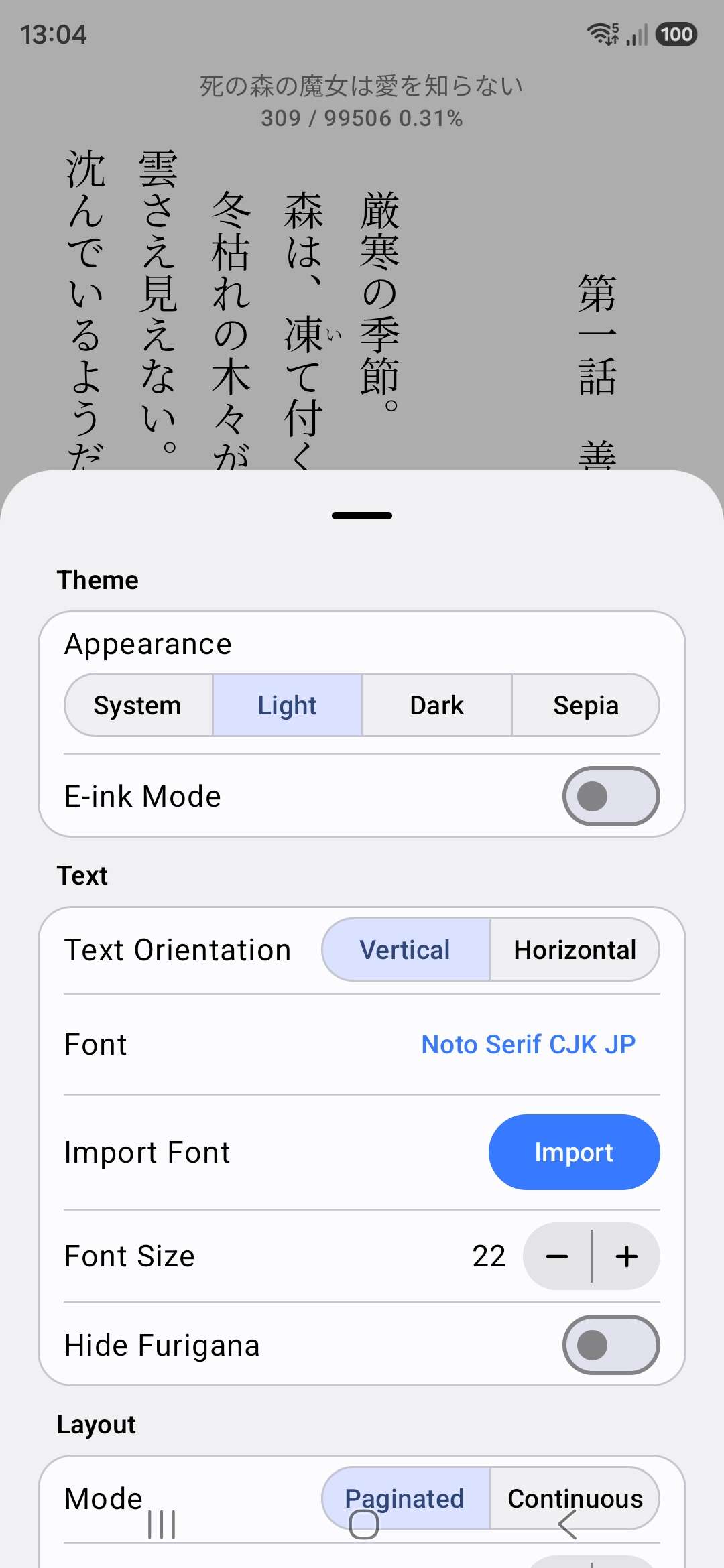
You can adjust the appearance of the reader by tapping the settings button in the bottom-right corner. You can also adjust the size of the dictionary popup in this menu, at the bottom.
Anki setup
This requires AnkiDroid to be installed.
In Hoshi Reader, go to Settings → Anki → tap Fetch in AnkiDroid. Allow the permission when prompted.
Then, choose the Anki deck.
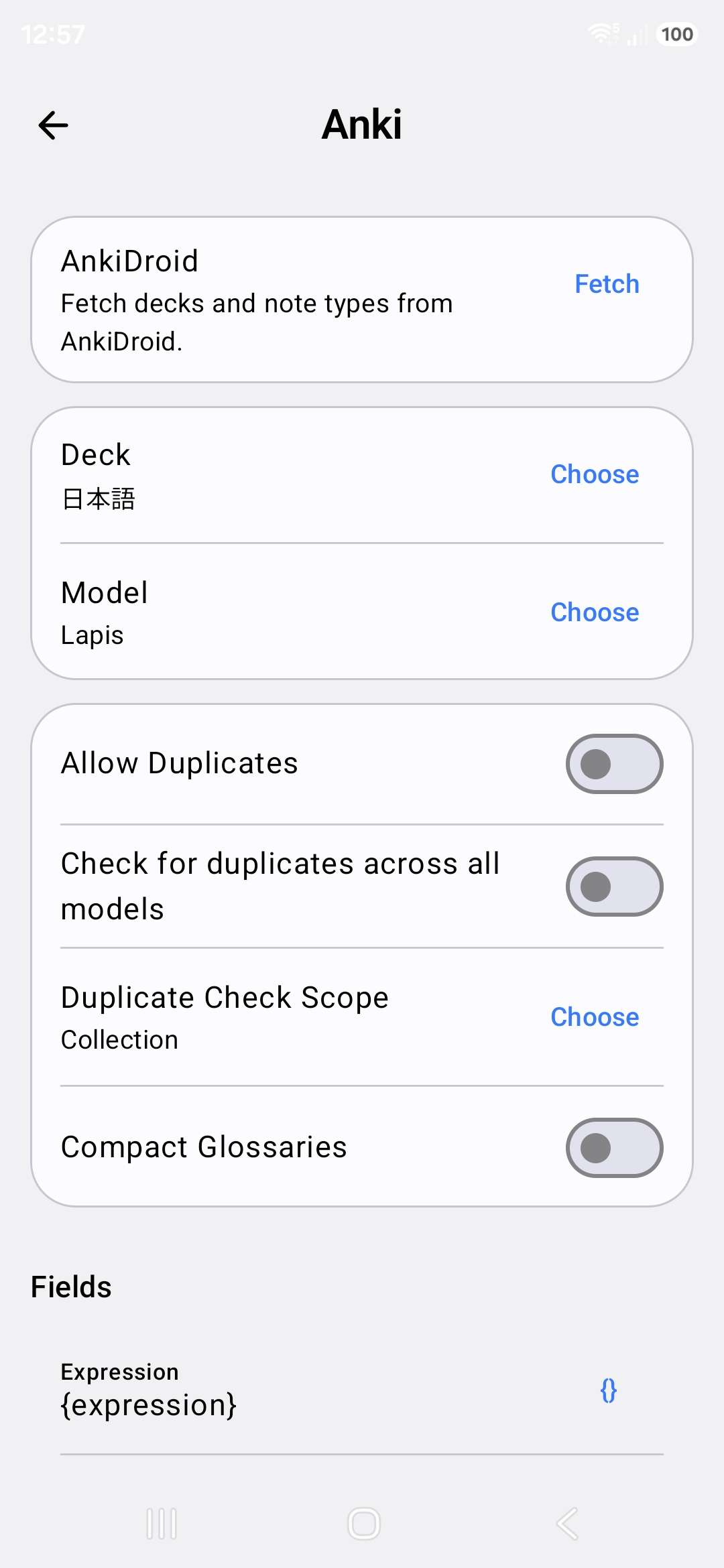
The card type "Model" will automatically be configured for Lapis, which is the recommended card type. The fields will also be automatically configured. For most people, the Anki setup is complete at this point.
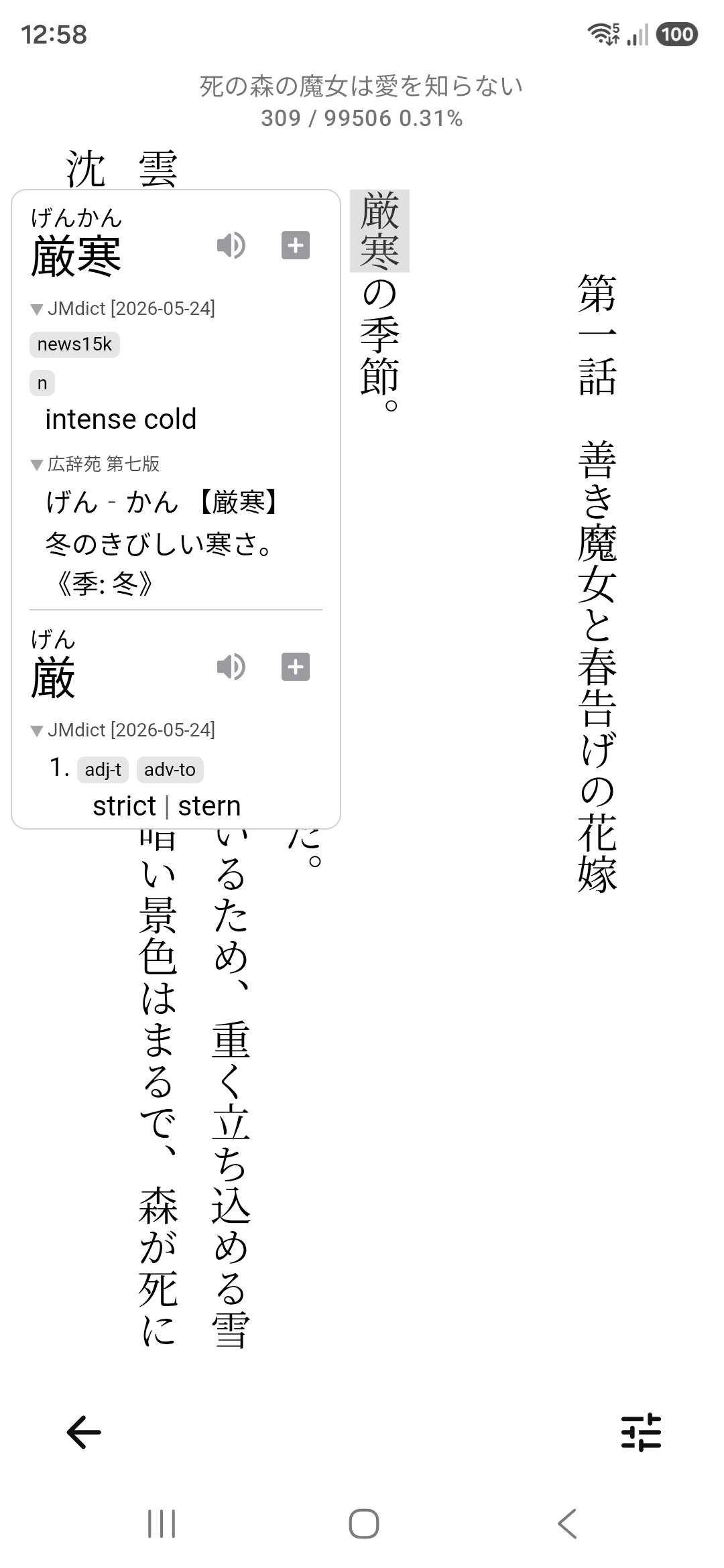
You can then add Anki cards by opening a book, tapping a word to look it up then pressing the + button in the dictionary pop-up:
Local Audio
Note: the local audio database uses 5.79GB of space on your device. Please ensure your device has sufficient space to not be out of space when the local audio database is imported to your device.
Download: android.db
Setting up local audio is easy. You just need to import the android.db file.
Set it up: Settings → Advanced → Audio → Local Audio: Enable → tap "Import" and pick the android.db file.
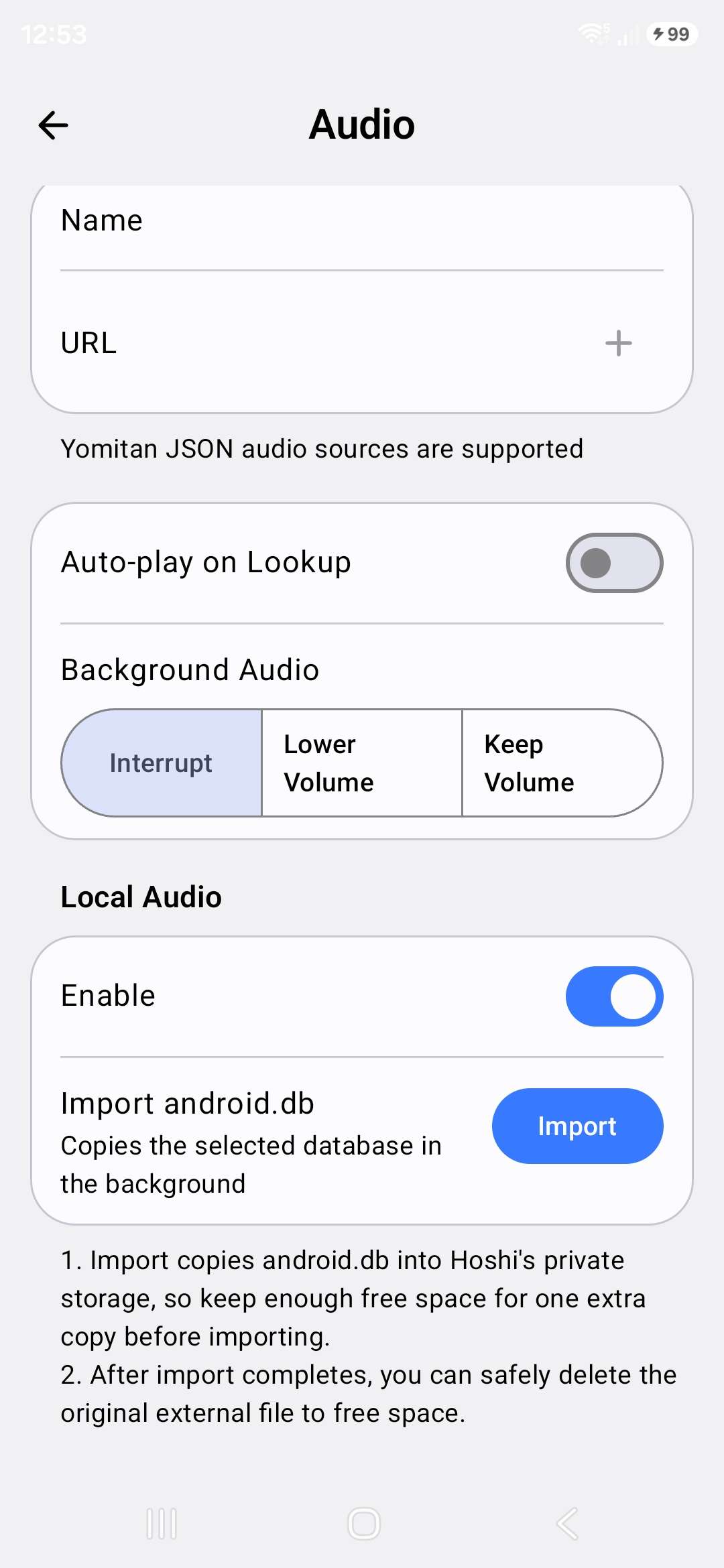
Hoshi Reader will automatically add the Local source and prefer it over the default source(s).
You are done!
iOS
Hoshi Reader for iOS is available directly from the App Store for devices on iOS 18 or later.
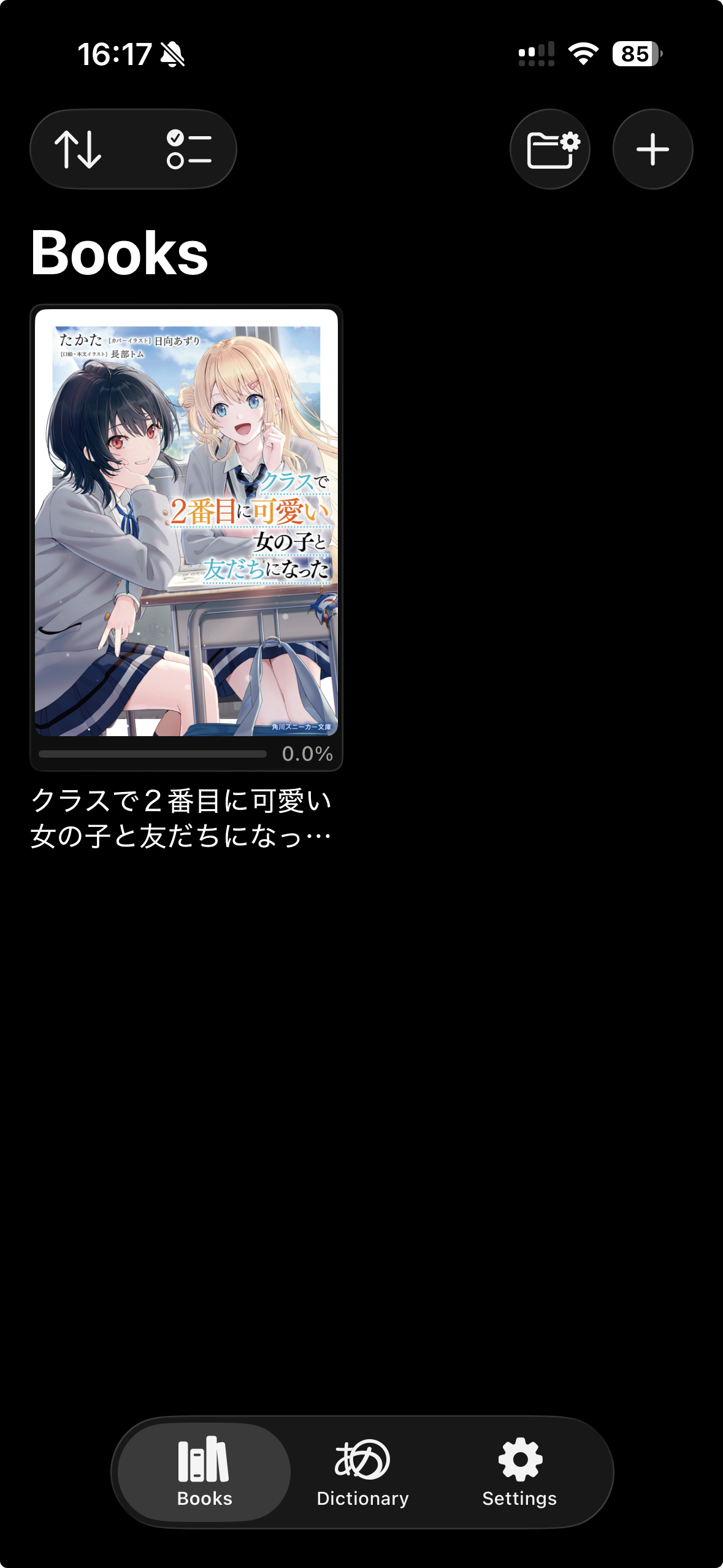
Open the app and you will see a plus in the top right corner. Press on it and it will open a file picker from which you can import your epub files.
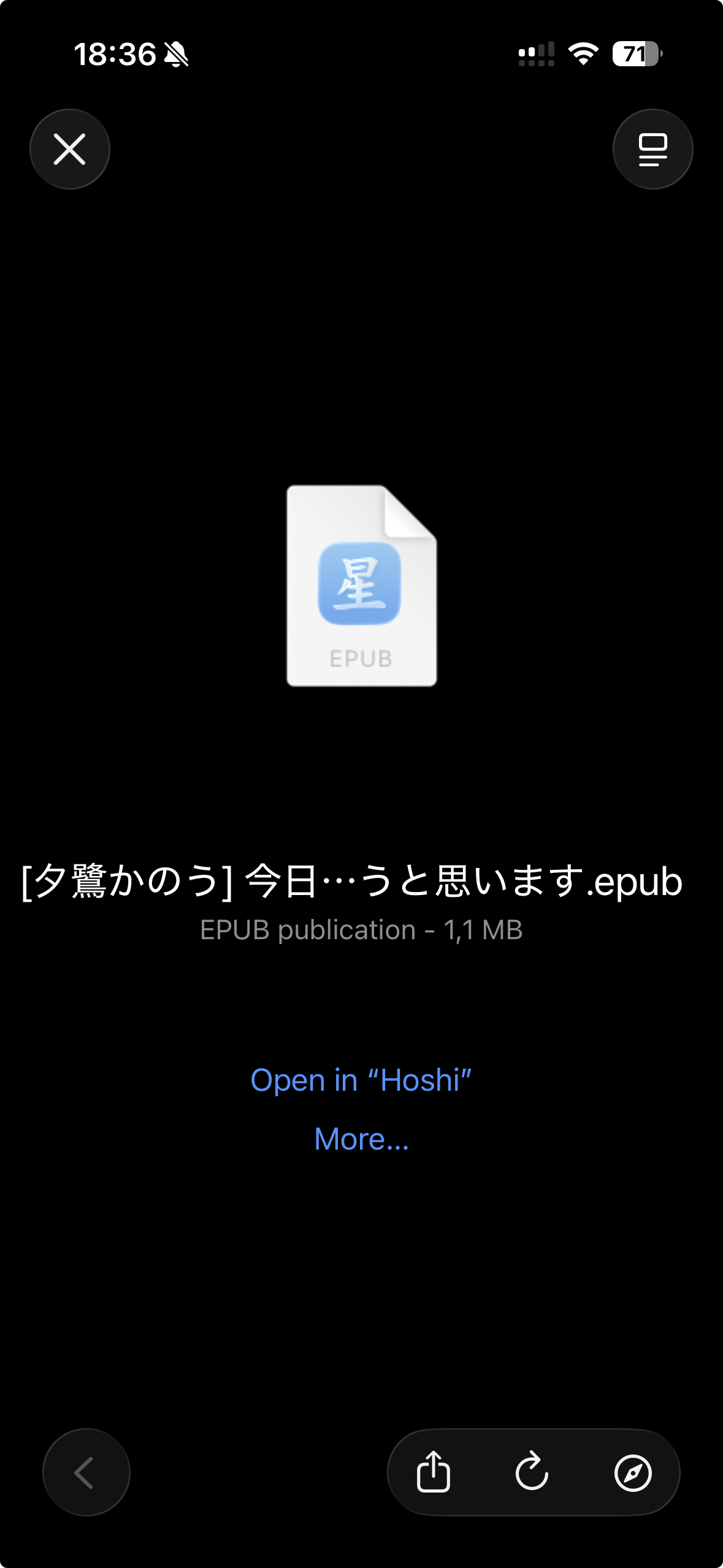
Additionally you can directly share books to Hoshi Reader when downloading books from e.g. Discord. Simply tap on Open in Hoshi or tap on more/the share button to choose Hoshi from the list of apps.
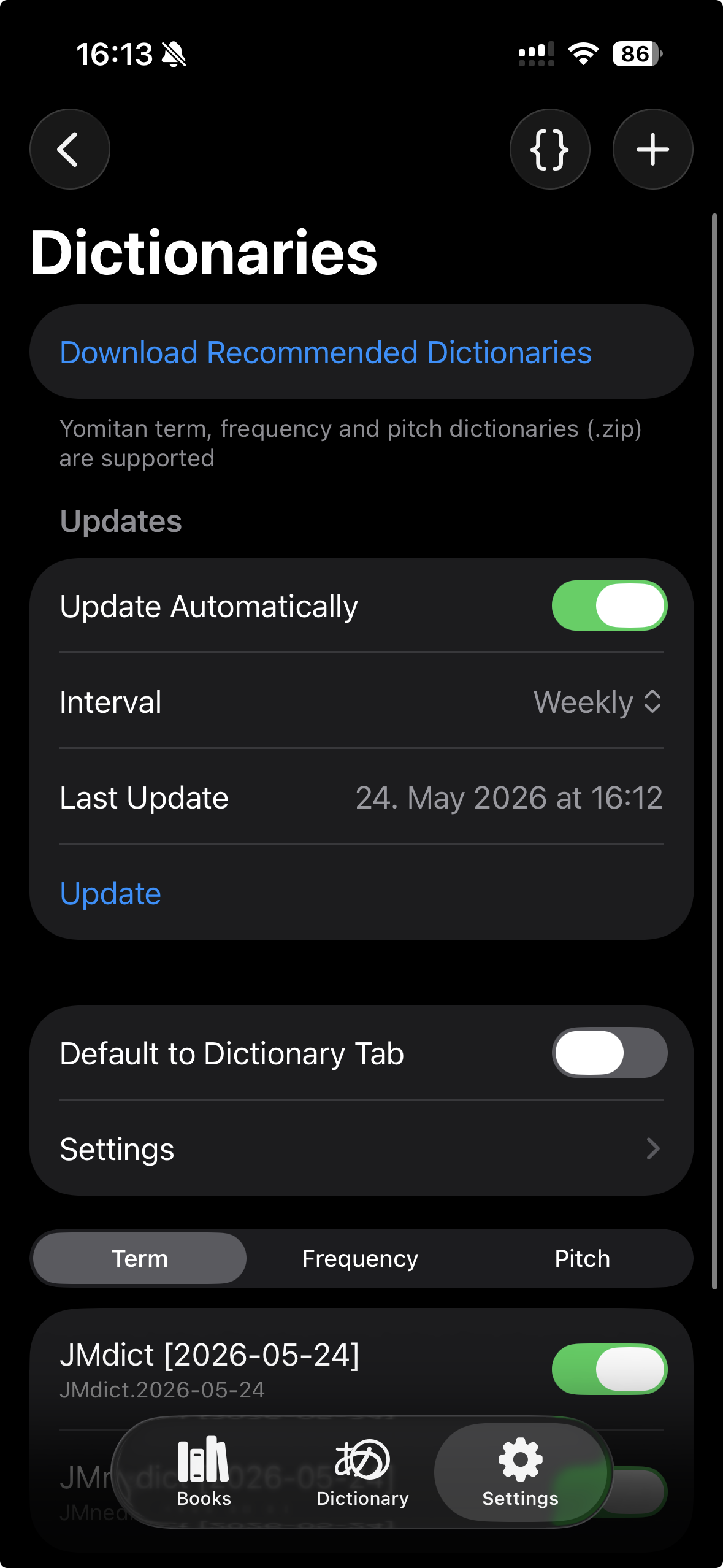
Hoshi Reader does not include any dictionaries out of the box. Navigate to Settings → Dictionaries to import your own Yomitan dictionaries or download a set of recommended dictionaries (JMdict, JMnedict, Jiten) by pressing on the button. You can reorder dictionaries by dragging and delete dictionaries by swiping left.
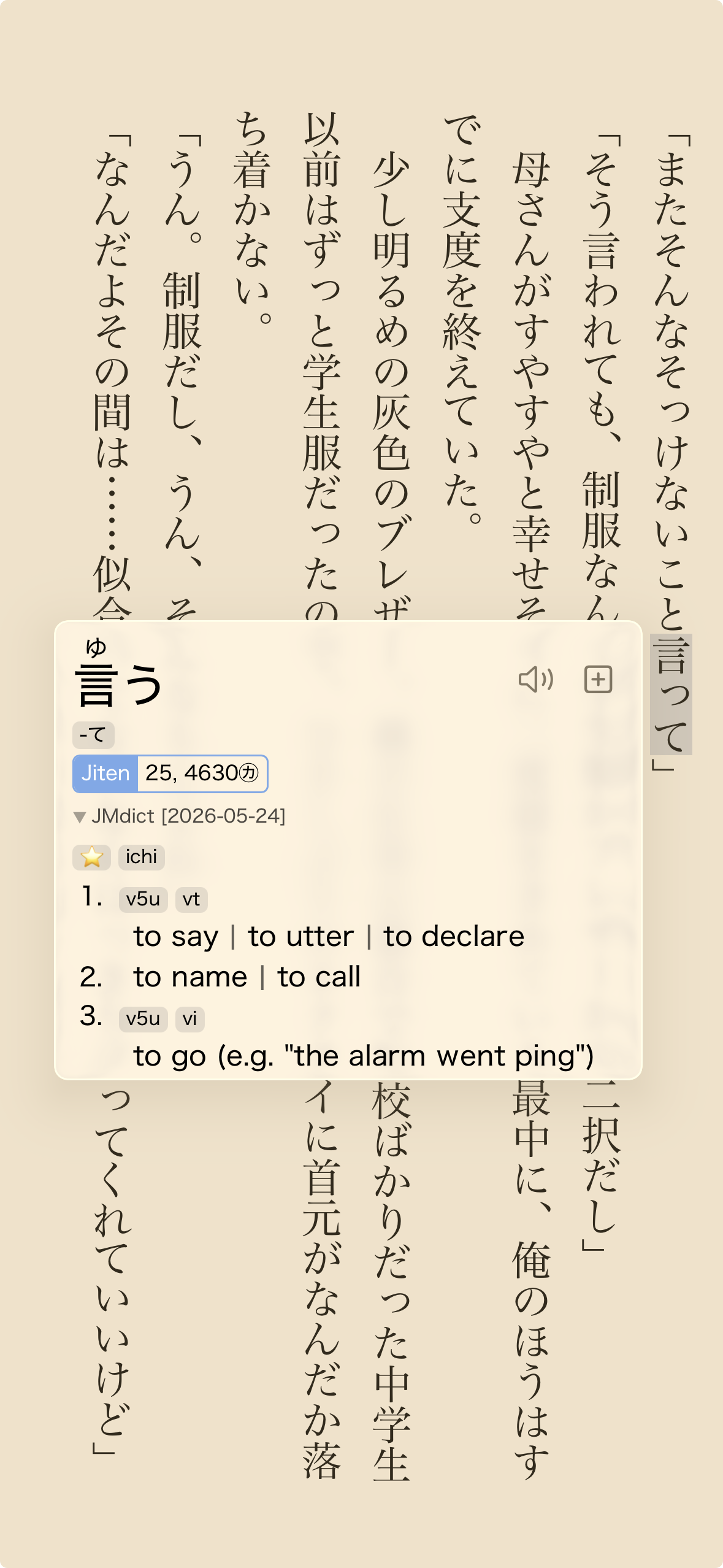
Open a book and tap on a word to look it up.
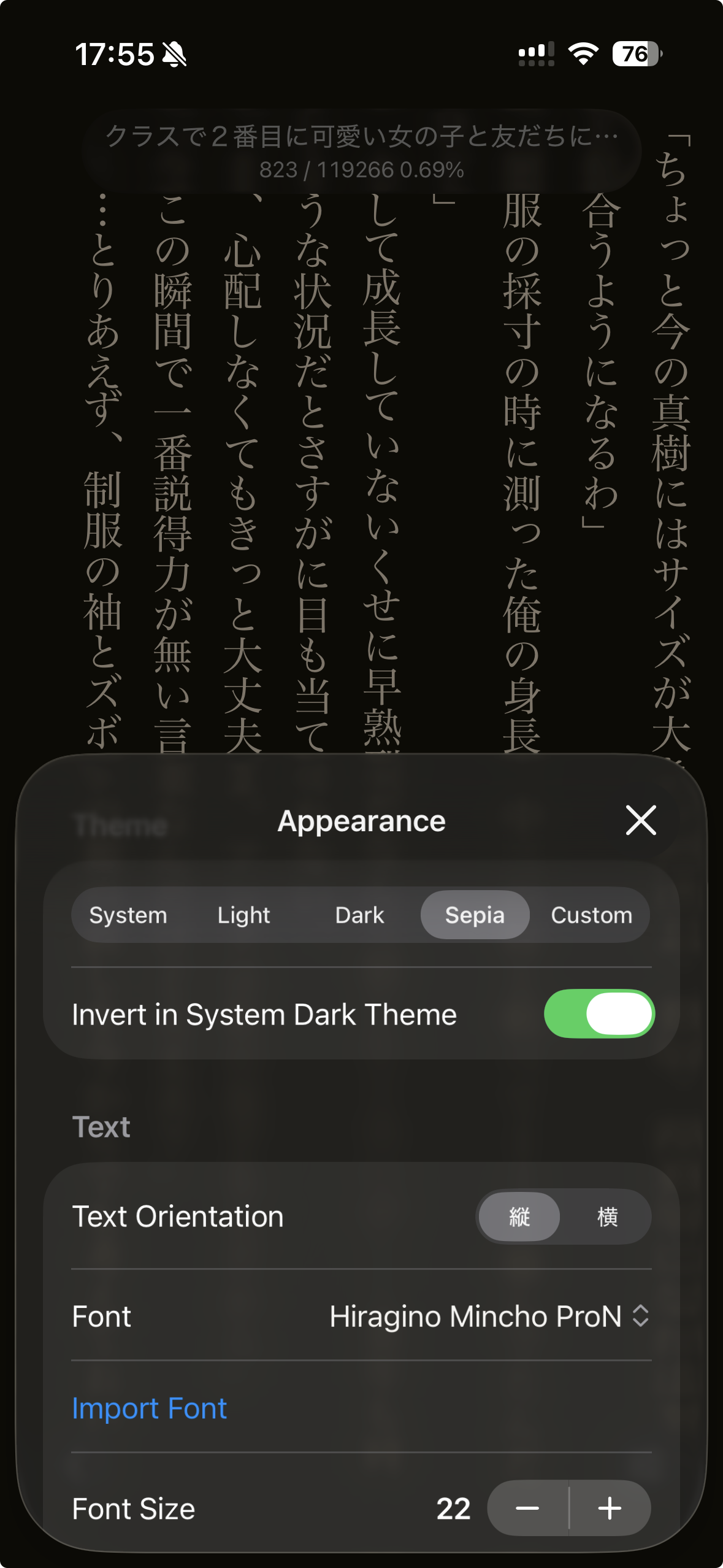
You can configure the reader and popup to your liking by pressing on the context menu in the bottom right corner and choosing Appearance.
Anki setup
Mining requires either the official, paid AnkiMobile app or an AnkiConnect instance hosted from a PC.
AnkiMobile
In Hoshi Reader go to Settings → Anki. Press on Fetch decks and models from Anki. You will be redirected to AnkiMobile. AnkiMobile will ask whether you allow Hoshi Reader to request your decks and notetypes, press OK.
You should be redirected back to Hoshi Reader. Choose your Anki deck and notetype and fill out the fields for your notetype at the bottom, you can find a reference for Lapis here.
AnkiMobile does not provide a good way to check your collection for duplicates. You can however import a backup of your collection or deck to allow Hoshi Reader to check for duplicates.
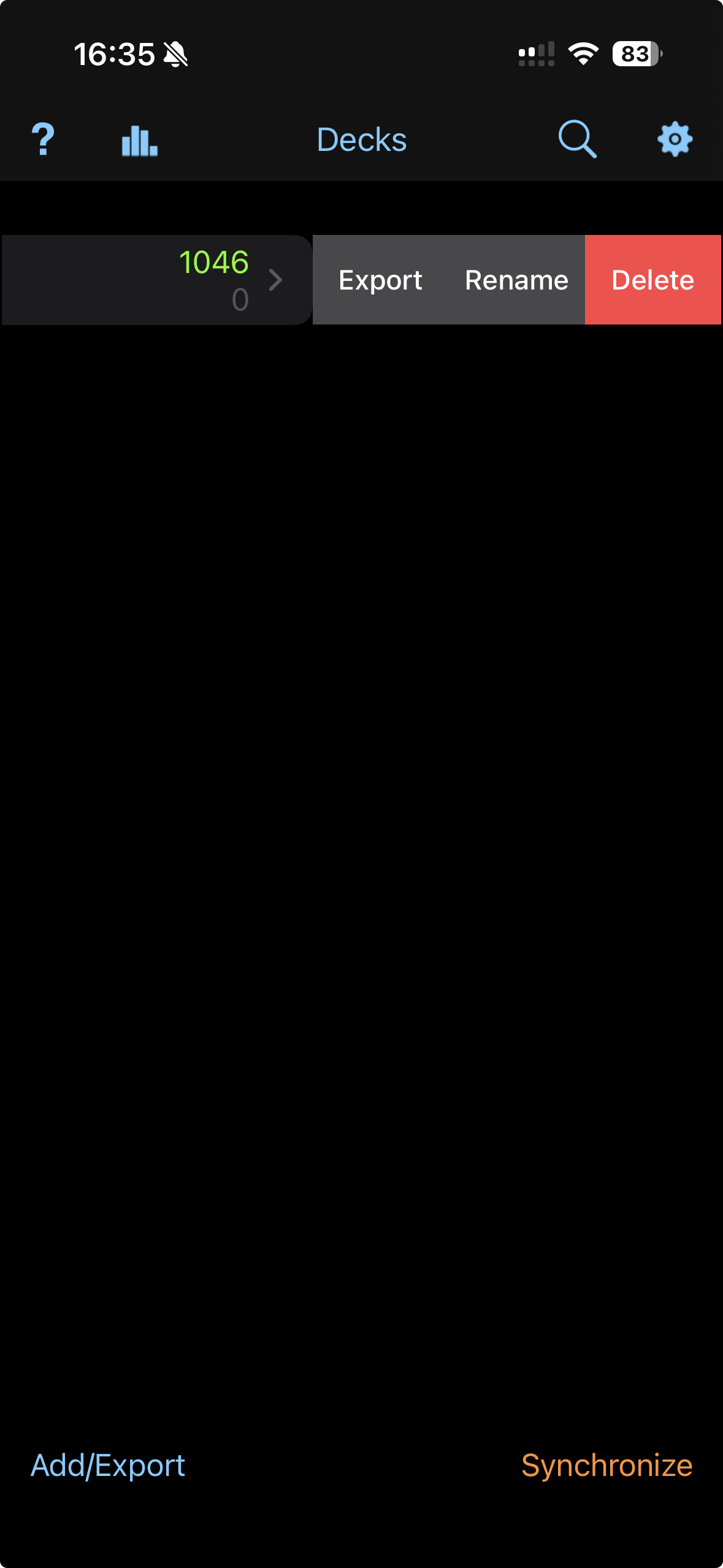
To create a backup, open AnkiMobile and either tap on Add/Export → Export Collection in the bottom left corner, or swipe right on a deck and tap on Export, depending on the scope you want duplicates to be checked in.
Untick Include media and press on Export to Share Sheet. You should be able to choose Hoshi Reader from the list of apps. Hoshi Reader will now check for duplicates in the deck/collection in that backup and automatically add words you mine to it as well.
If you mine on any other devices, it's recommended to import a fresh backup periodically to make sure it stays in sync.
AnkiConnect
If you don't have access to AnkiMobile, you can alternatively use Anki and AnkiConnect from your PC.
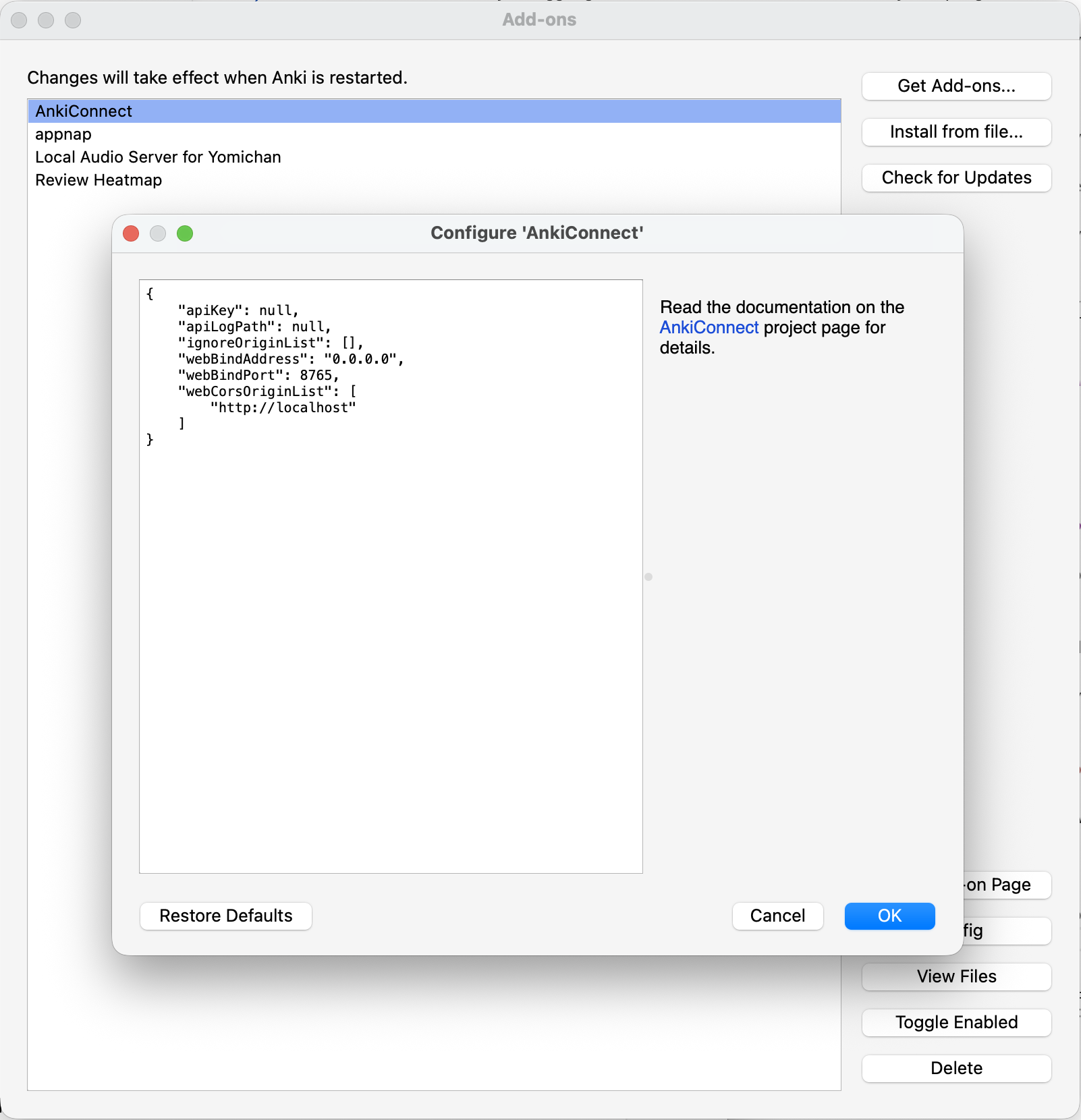
To set this up first of all make sure you have AnkiConnect installed in Anki. In Anki navigate to Tools → Add-ons. Choose AnkiConnect and press on Config in the bottom right corner.
Change the webBindAddress to 0.0.0.0. Restart Anki.
You will need the local IPv4 address of your PC. To find your PC's IPv4 address you can open Settings → Network & internet → Wi-Fi or Ethernet depending on your connection on Windows, or Settings → Wi-Fi → Details on the connected network on macOS. Scroll down to find the IPv4 address (not the router/gateway address).
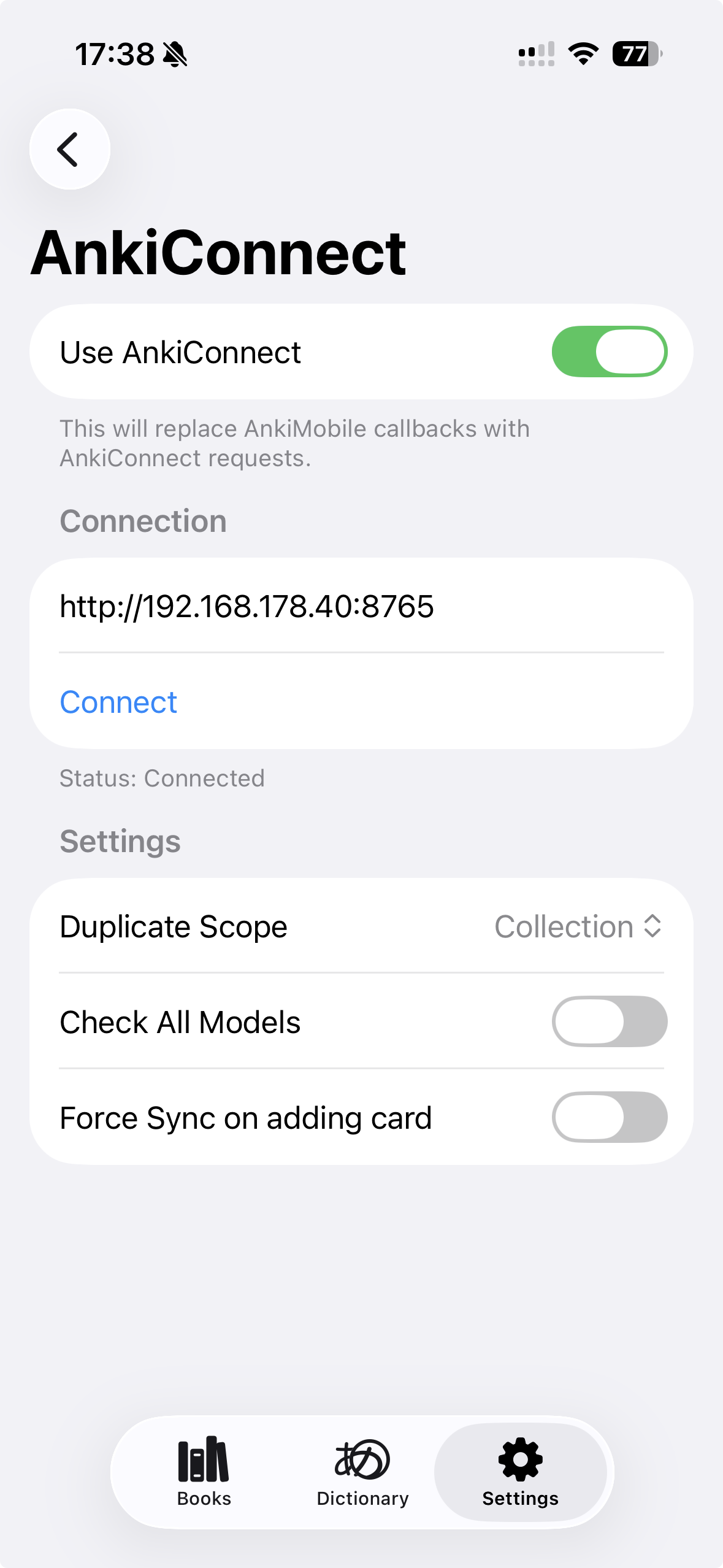
In Hoshi Reader navigate to Settings → Advanced → AnkiConnect. Tick Use AnkiConnect and type http://localip:8765 into the address field.
Tap on Connect, you will be asked to allow Hoshi Reader to find devices on local networks. Tap Allow and tap on Connect again. A Windows Defender Firewall window may show up on your PC asking you to allow Anki to communicate on your local network. Press Allow access. If you aren't connected yet you may have to tap on Connect again.
You can now follow the same steps to configure your deck and notetype in Settings → Anki. A backup is not needed when using AnkiConnect, duplicate checks will work out of the box. You will need to keep your PC on to mine cards.
Add a card to Anki by tapping the + button in the dictionary pop-up. If you're using AnkiMobile, this will briefly jump to AnkiMobile and then jump back to Hoshi Reader.
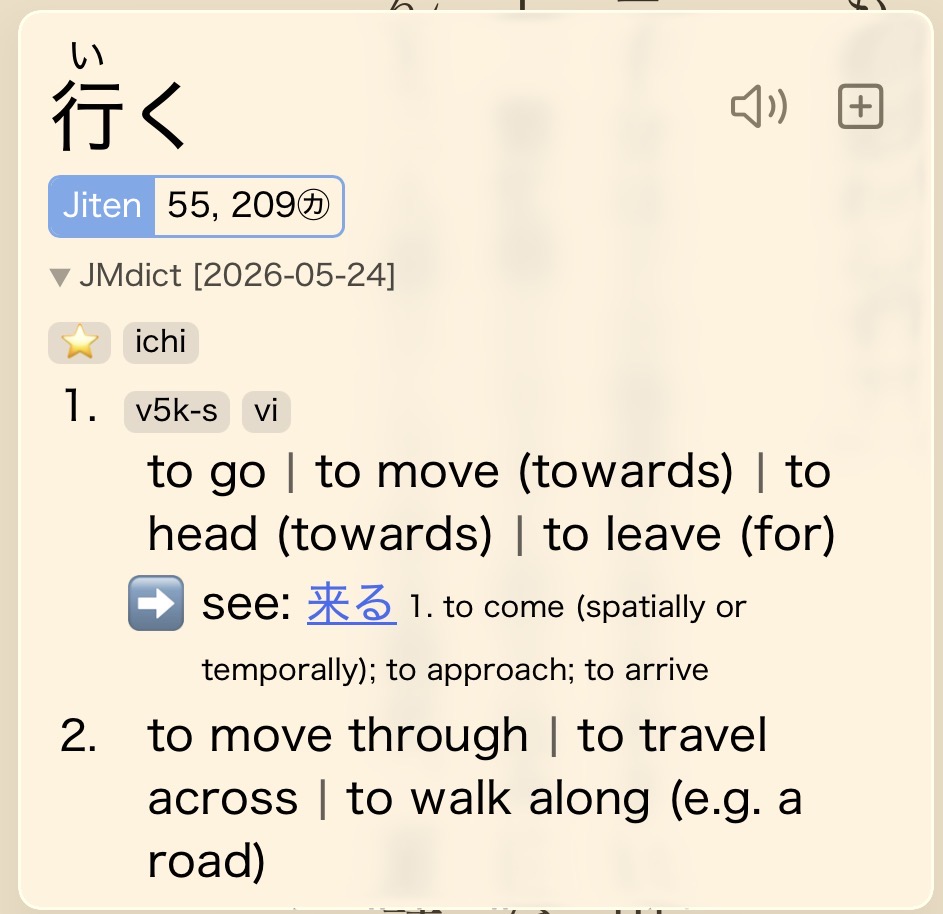
Local Audio
Make sure you have around 13GB of space on your device during import.
Download: android.db
Navigate to Settings → Advanced → Audio. Scroll down to the bottom and enable Local Audio. Tap on Import and choose the android.db. The database is copied into app storage, so you can delete the copy from your Downloads folder (don't press on the delete button in the app).
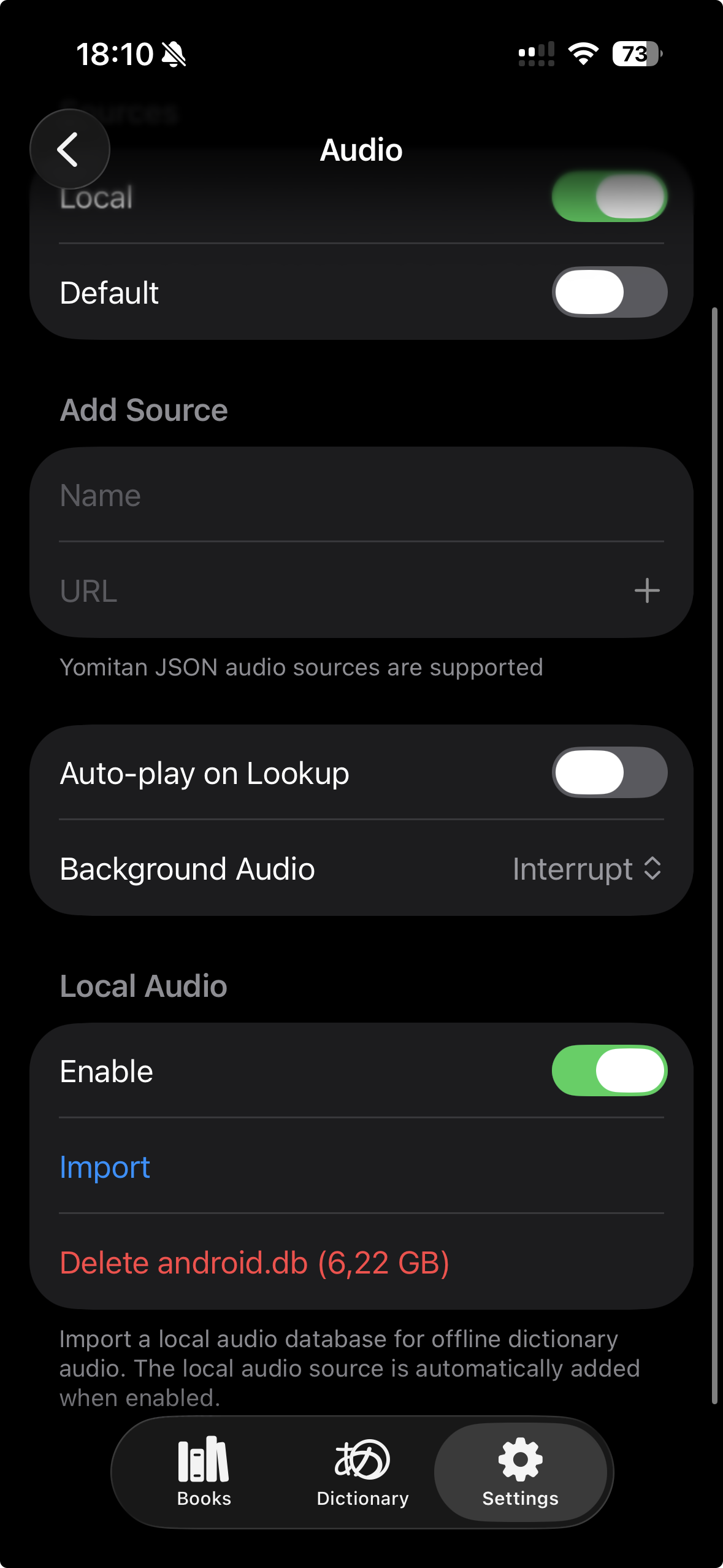
Hoshi Reader will automatically add the Local source and prefer it over the default source(s).
You are done!
Android - PopLingo (OCR lookups in any app)
PopLingo gives you instant OCR dictionary lookups in any app (manga, visual novels, games) - using Yomitan dictionaries.
Setup
- Install PopLingo from the Play Store.
- Complete the quick onboarding (it sets everything up and installs a starter dictionary).
Using PopLingo
- Start PopLingo’s overlay (floating tab).
- Open the app you want to use (manga, visual novel, game, etc.).
- Drag the tab over a word to look it up.
Add more dictionaries (optional)
- Open PopLingo → Add Dictionaries → Import Local Dictionary.
- Import your Yomitan-format dictionary ZIP files (the same ones you use on desktop).
- Wait for the import to finish.
Tips
- High contrast (dark text on a light background) improves accuracy.
- If results look off, zoom in a bit and try again.
- OCR struggles with blurry images or very stylized fonts.
Manatan (all-in-one anime, manga, and novels)
Manatan is an all-in-one app for anime, manga, and novels. It supports Desktop, iOS, and Android.
Setup
- Download and install the latest native Android release (
.apk) from Manatan Releases. - Launch Manatan.
Using Manatan
- Open Browse on the sidebar, then go to the Extensions tab.
- (If needed) add extension repos from
https://manatan-community.github.io/extensions/add-repo/. - Tap Install on the source extensions you want.
- Open Sources, pick a title, then start reading or watching.
Chimahon (manga, novels, OCR)
Chimahon is an Android manga and novel reader built on Mihon with dictionary support, on-device OCR, and Anki mining.
- Manga Reader: Full Mihon extension support — access thousands of manga sources via community extensions.
- Novel Reader: EPUB reader with tap-to-lookup.
- Local OCR: On-device text recognition for manga pages — no internet needed.
- .mokuro: support for pre-ocred manga.
For general usage instructions (adding extensions, browsing sources, library management), see the Mihon Getting Started Guide — Chimahon inherits all of Mihon's core functionality. You can add manga sources via the Keiyoushi extensions repo.
Download
Download the latest APK from GitHub Releases. Requires Android 8.0 or higher.
Setup
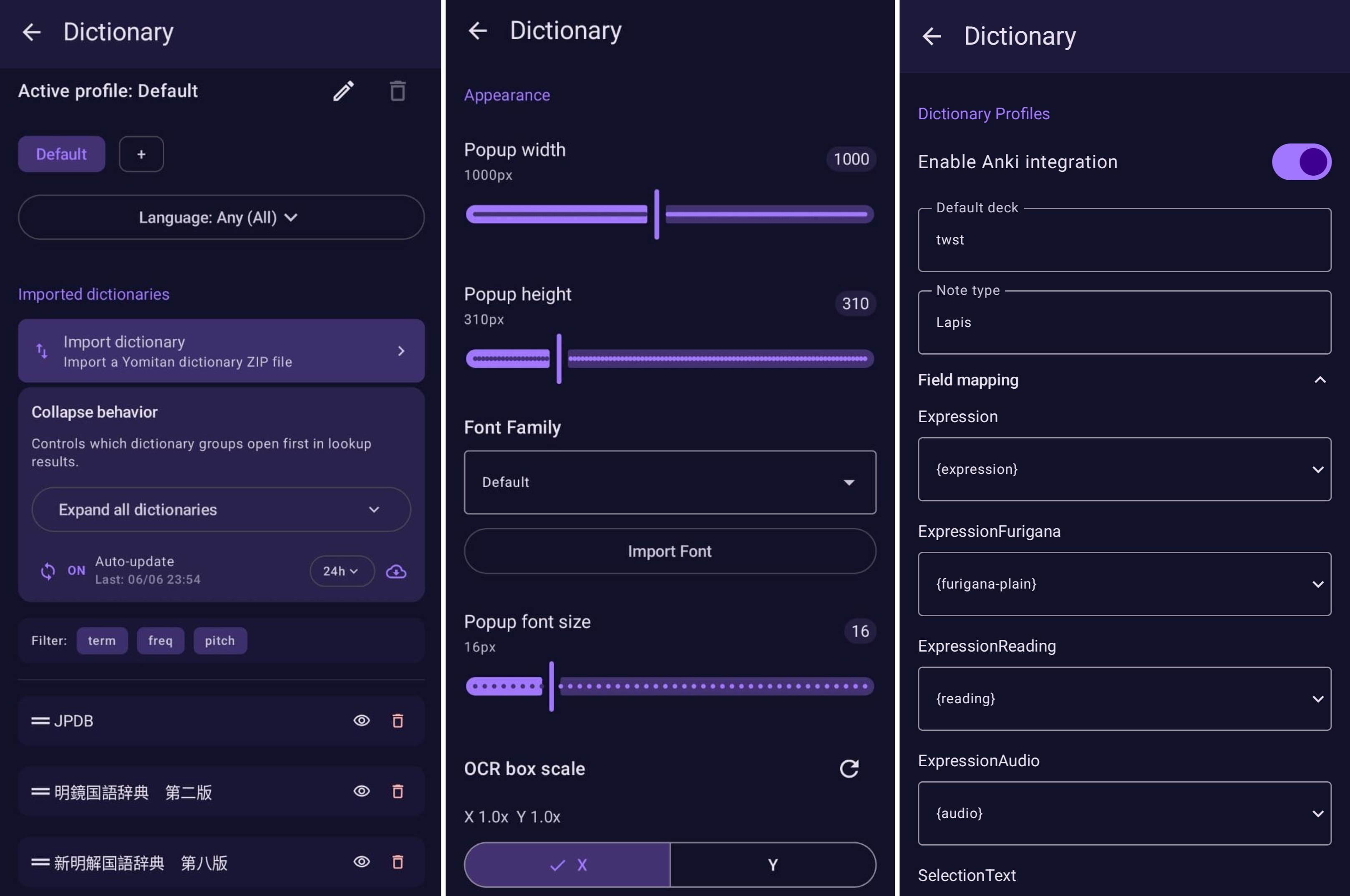
Open Settings → Dictionary → to access all settings related to dictionaries and anki. For anki lapis is used as default card type.
Local Manga
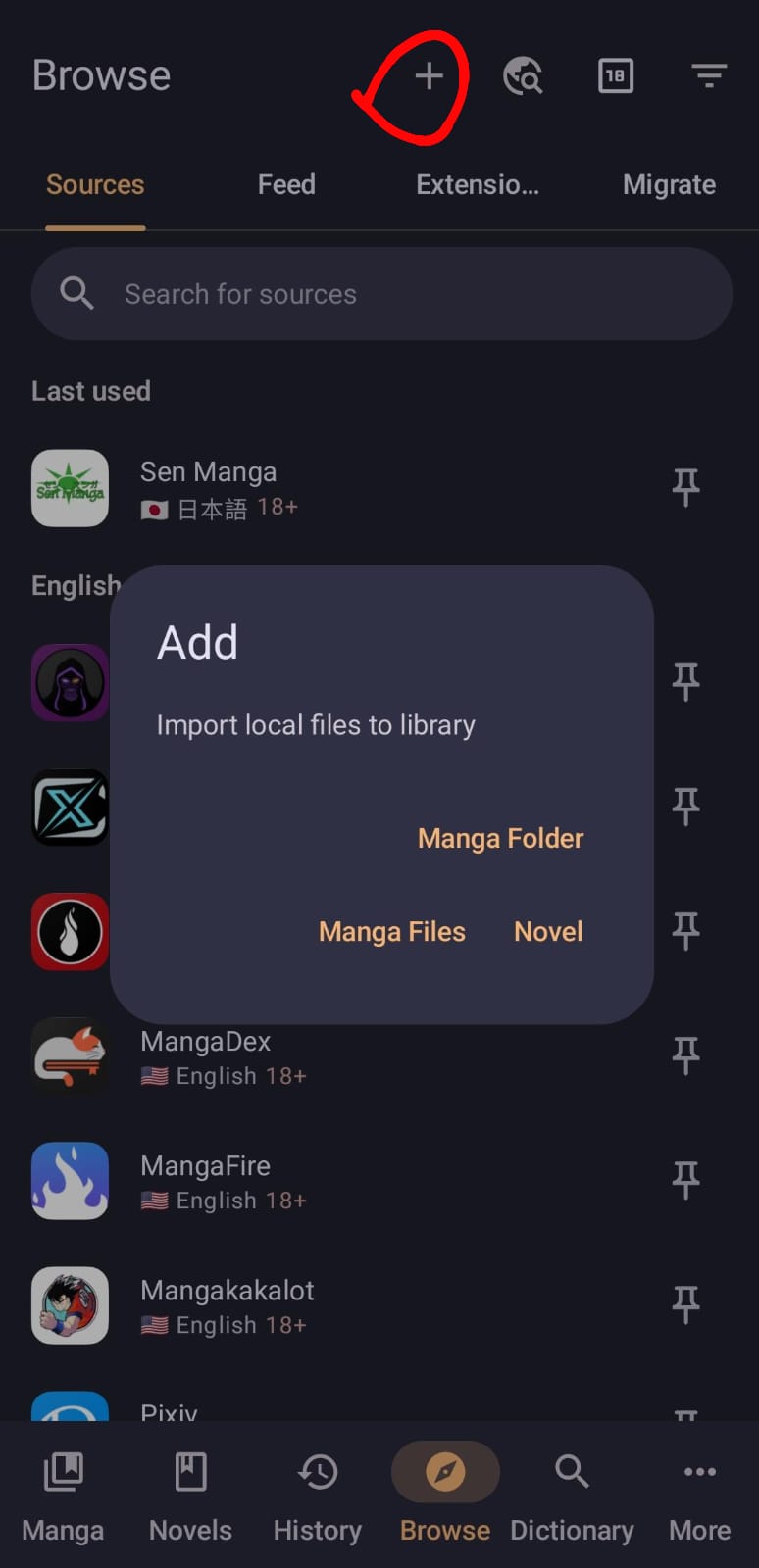
Tap the + icon in Browse → Sources to add a local manga image folder or archive (e.g. .cbz) files for offline reading. You can also select the .mokuro file directly alongside your manga.
Mokuro
Mokuro files (.mokuro) contain pre-processed OCR data for manga pages, enabling instant text lookups without running on-device OCR. There are two ways to use them:
- Local: Place the
.mokurofile next to your manga files: - For archives (
.cbz,.zip,.rar,.cbr,.cb7,.tar,.cbt): putMangaName.mokurobeside the archive file - For image folders: put the
.mokurofile inside the manga folder Then enable OCR in the reader settings. - Extension: If you're using the mokuro extension, just enable OCR in the reader — no extra setup needed.
For generating your own mokuro files, see the mokuro project.